
This one is probably not a problem for most people, but it was really bugging me. The problem is that the internal network card on my laptop is just about useless (MediatTek RZ616) and I’ve added an external WiFi card to save my sanity. Unfortunately, This is how they appear in the
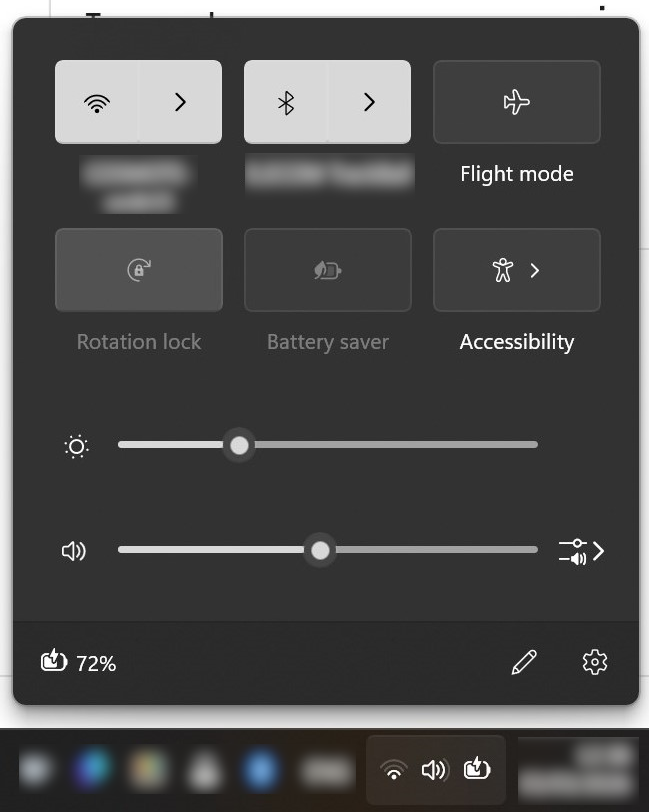
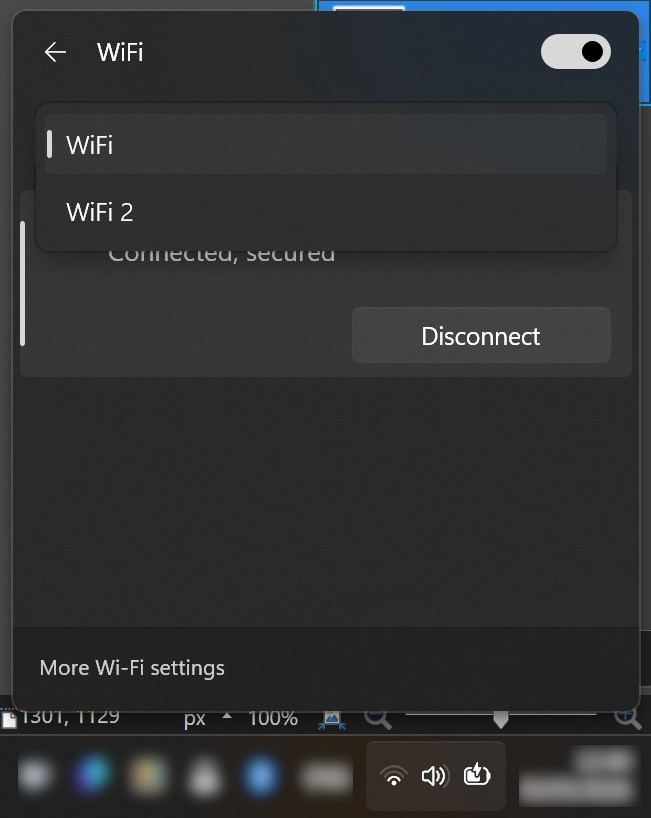
What is the problem:
As both the adapters are enabled in the Device Manager, Windows names the interfaces as “WiFi” and “WiFi 2” (same thing happens with other interfaces, like Ethernet0). Although this is not a huge problem, the fact that, in order to rename these, you have to go hunting, is driving me mental. I thought that I’d just go to Settings > Nework & Internet > Wifi, where the two interfaces are listed and where I can view all the hardware details, etc. and change the name there. Mmmm, no. Here’s what you get there:
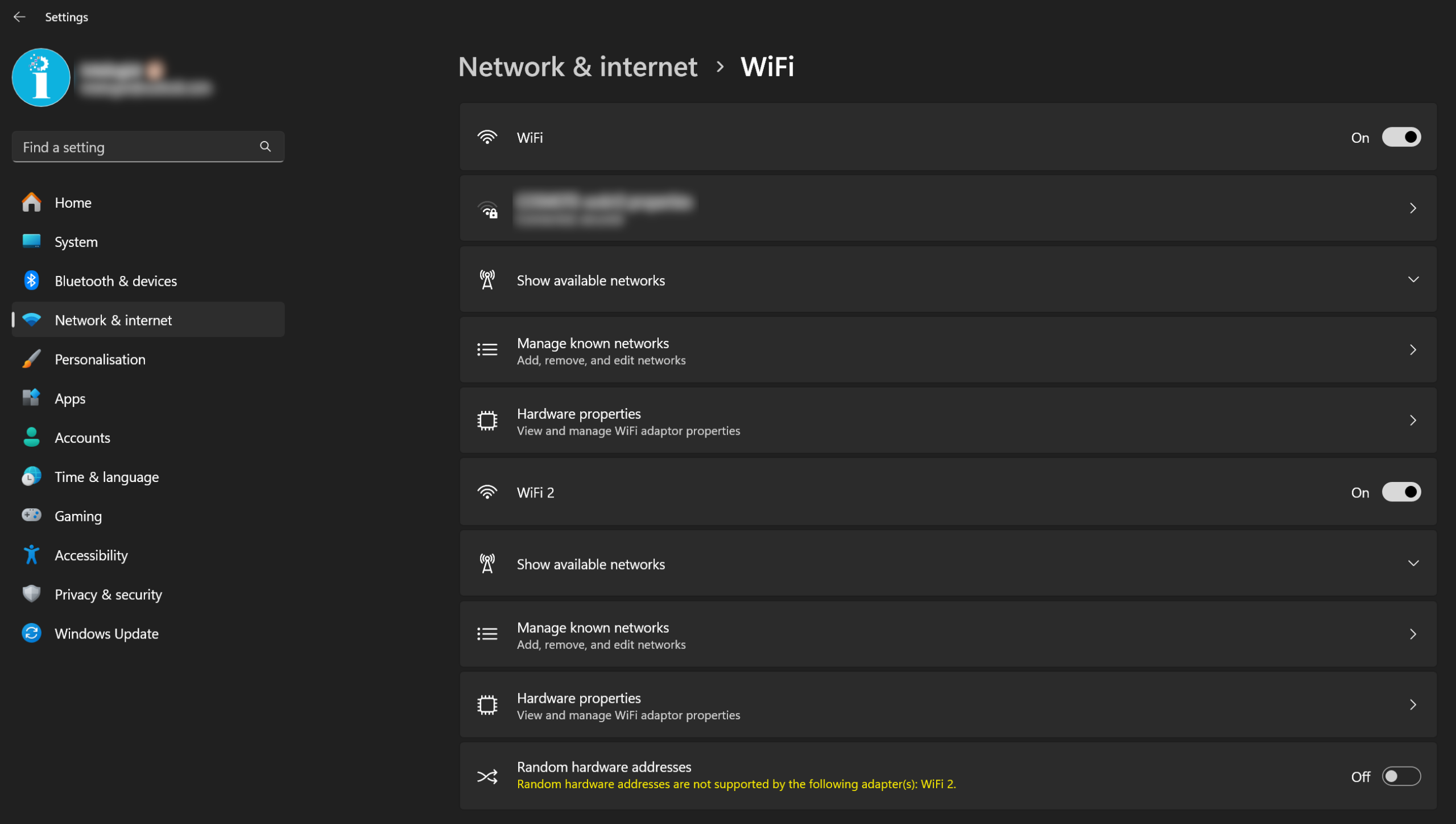
You get a few things to play with, but no rename.
What is the solution
- Via the UI
To same someone’s sanity, the option is no there. You need to go one step up, into Settings > Network & Internet > Advanced network settings.
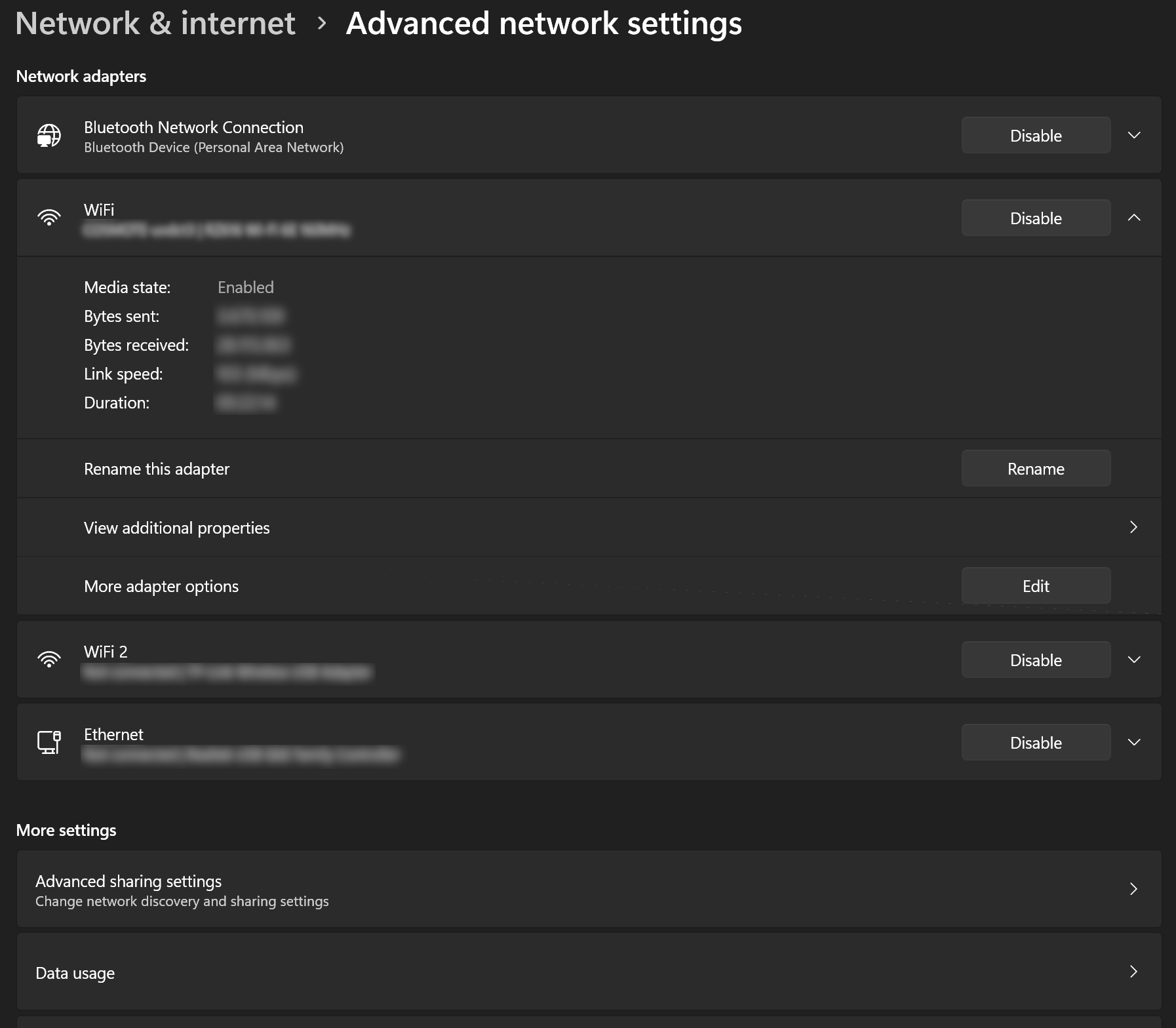
Expand the interface you wish to rename (“WiFi” in the screenshot above) and press “Rename”. This really didn’t have to be there. Or, it could also be in “Settings > Network & Internet > WiFi”.
- Via the Command Prompt
You can use the following commands to view the details of your network interfaces and to rename them to your liking:
cmd
netsh interface show interface
netsh interface set interface name="Current Name" newname="New Name"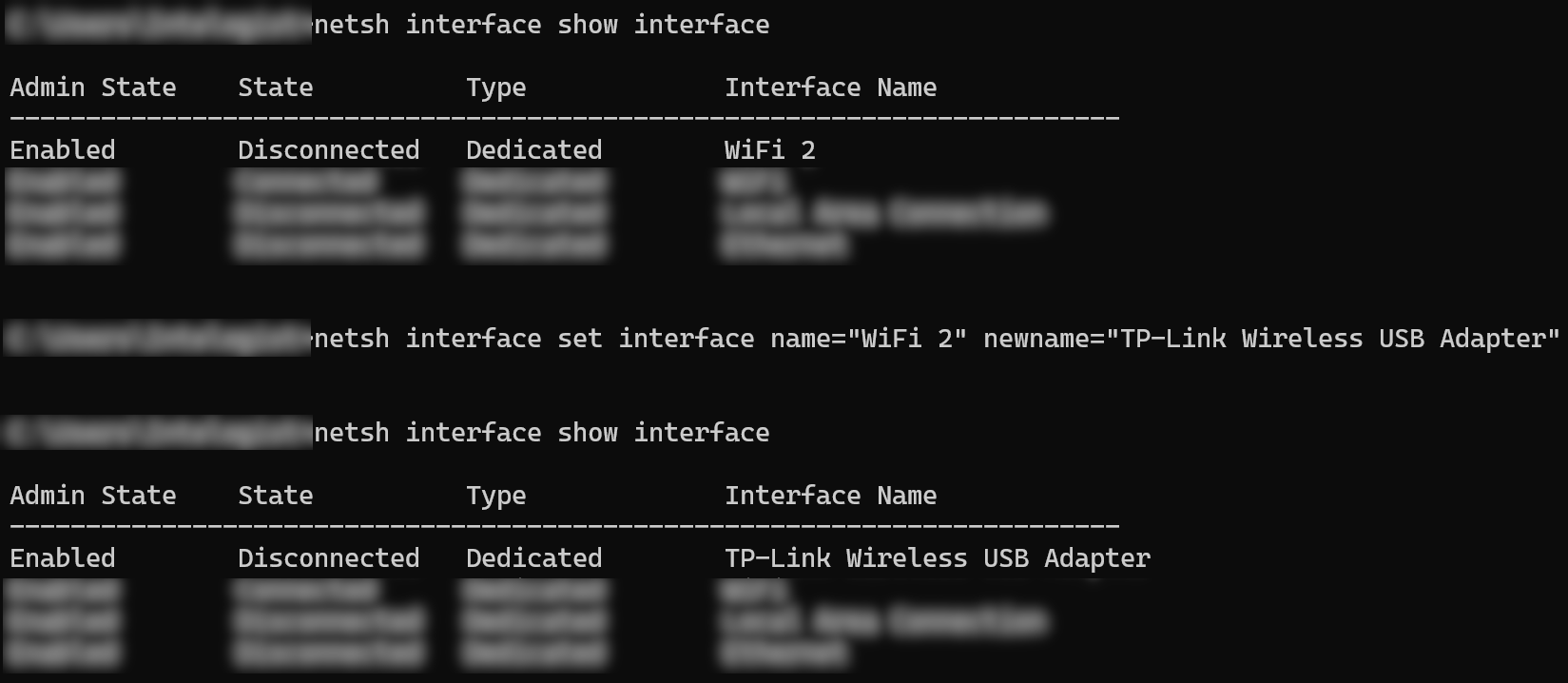
References
- Acer Community: How to Change Your Wireless Network Name in Windows 11
- NinjaOne: How to Rename a Network Adapter in Windows