
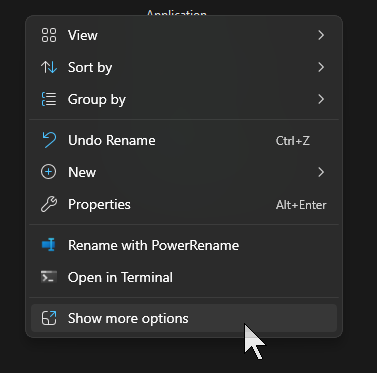
When shipping Windows 11, Microsoft took some liberties with the design and the user experience. Hiding options from the context menu in the File Explorer and requiring users to wait for the shortened option list to load before they can then click on “Show more options” to display the full list of available context menu options was one of them. I’m not a fan.
What is the problem
Normally, you’d right click (or use the dedicated keyboard option) in the Windows File Explorer and get applicable options, depending on whether or not a selection has been made. Unfortunately, with Windows 11, you only get a subset of options in the Context Menu:
What is the solution
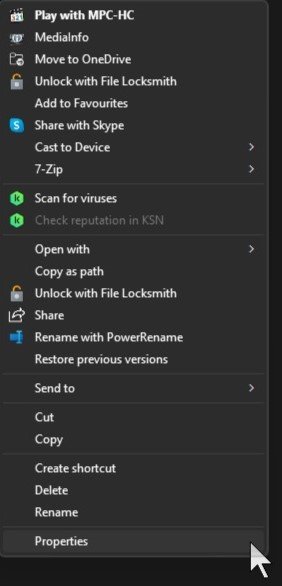
By forcing Windows 11 to always display the full list of options, we save ourselves from having to wait for the list to populate as well as from having to click through to view the missing options from the list. We can do that on a per profile basis (i.e. this has to be applied for each Windows user):
- Hit Windows key + R to open the RUN window
- Paste in the following command: reg add “HKCU\Software\Classes\CLSID{86ca1aa0-34aa-4e8b-a509-50c905bae2a2}\InprocServer32” /f /ve
- This will add a value into the current user’s relevant registry section and make File Explorer fall back to the legacy full menu
- This is strictly per user/account, so you’d have to repeat for every Windows user/account you wish
- Remember to restart your computer or kill and restart File Explorer via the Task Manager. Sometimes, restarting File Explorer is not enough, but logging out of the Windows account and then logging back in, applies the fix without requiring a full system shutdown.
The above will force Windows to always display the full list of options in the File Explorer context menu:
References
- Superuser: How can I get back old context menu for Windows 11 right click?
- Dynamics 365 Community: Restore Windows 10 Style Right-Click Context Menu in Windows 11